Students
Add and edit students
Add students one at a time, fix their details later, or bring in a whole list from a spreadsheet.
- Who can do this
- Admins. Admins and instructors can also add students from the Front Desk.
- Where
- Management → Students
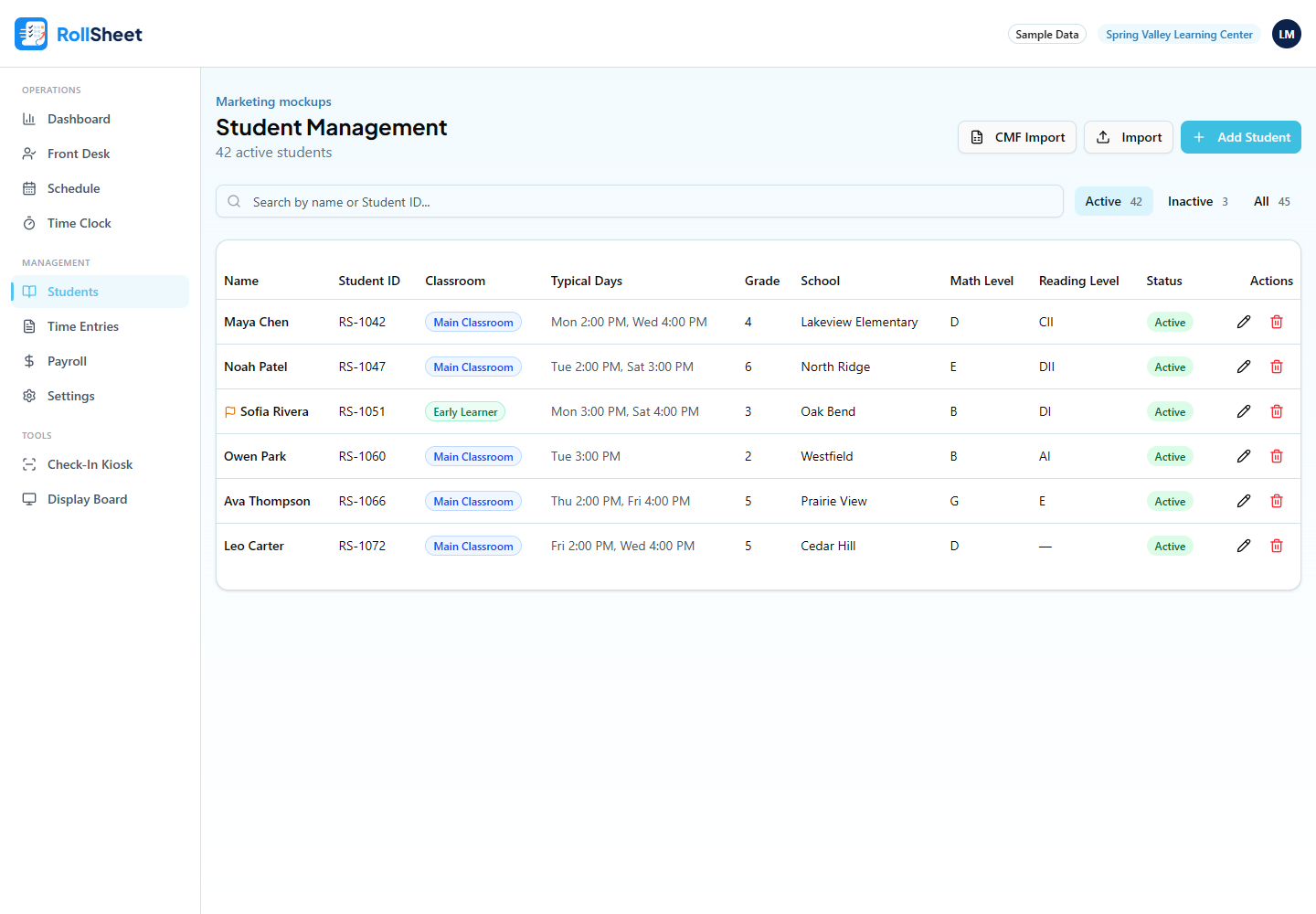
Add a student
- In the sidebar, open Students (under Management) and click Add Student.
- Enter First Name and Last Name. These are the only required fields.
- Fill in what you have: Student ID, Grade, School, Classroom (Main Classroom or Early Learner), Math Level, Reading Level, Date of Birth and Enrollment Date.
- Under Parent/Guardian, enter the parent's name, email and phone. The parent is saved only when Parent First Name is filled in.
- Click Add Student.
What the other fields are for
- Date of Birth drives the birthday reminders on the Front Desk and the birthday messages at check-in.
- Typical Schedule puts the student's regular visits on the weekly schedule. See "Set a student's typical schedule".
- The parent's Email is how a parent gets linked to the parent portal. See "Connect a parent to the parent portal".
- New parents get check-in and check-out texts by SMS by default. To change that, edit the student and adjust Notification Preferences.
- To show an alert when the student checks in, edit them and tick Flag this student (shows alert on check-in), then add a Flag Note.
Edit a student
- Open Students and click the pencil at the end of the student's row.
- Change what you need.
- Click Save Changes.
Quick add and edit from the Front Desk
Admins and instructors can work with students without leaving the Front Desk.
- Click Add Student in the Check In Student card. The short form takes name, grade, school, Math and Reading levels, typical schedule and parent contact.
- Click the pencil on a student in the check-in list to add or remove Math or Reading, change levels, or set their typical schedule, then click Save.
Add many students from a spreadsheet
- Open Students and click Import.
- Click Download Template. Fill in one row per student and delete the example row.
- Click Choose File and pick your spreadsheet (.xlsx or .xls).
- Check the preview. Rows marked Error show what's wrong and will be skipped.
- Click the button under the preview, for example Import 12 Students. When it finishes, click View Students.
- First Name and Last Name are required on every row.
- Grade Level must be Pre-K, K or 1–12. Dates can be YYYY-MM-DD or MM/DD/YYYY.
- Level columns take base levels such as 2A, A or C. Reading sub-levels like AI or BII aren't accepted by the import, so set those on the student afterwards.
- Parent Relationship can be mother, father, guardian, grandparent or other.
What this affects
- Each active student uses one seat on your plan. Adding or importing is blocked if it would go over your limit.
- Spreadsheet import only adds new students. It doesn't update existing ones or check for duplicates, so don't import the same file twice.
Tips
- Kumon centers can create and update students straight from the CMF report instead. See "Update students from a Kumon CMF report".