Students
Set a student's typical schedule
Save the days and times a student usually comes in so they show up on every week of the schedule, and add one-off visits when plans change.
- Who can do this
- Admins and instructors. The Students page is for admins only, so instructors set typical schedules from the Front Desk.
- Where
- Management → Students or Operations → Front Desk (typical schedule) · Operations → Schedule (weekly view)
Set the typical schedule
- Open Students (under Management) and click the pencil on the student's row. You can also do this while adding a new student.
- Under Typical Schedule, pick Day 1 and Time 1, and Day 2 and Time 2 if they come twice a week.
- Tick Show these visits on the weekly schedule.
- Click Save Changes.
- Days run Monday to Saturday. Times run from 8:00 AM to 7:45 PM in 15-minute steps.
- Each visit needs both a day and a time. A day without a time isn't saved.
- Admins and instructors can also set it from the Front Desk: click the pencil on a student in the check-in list.
How it shows on the schedule
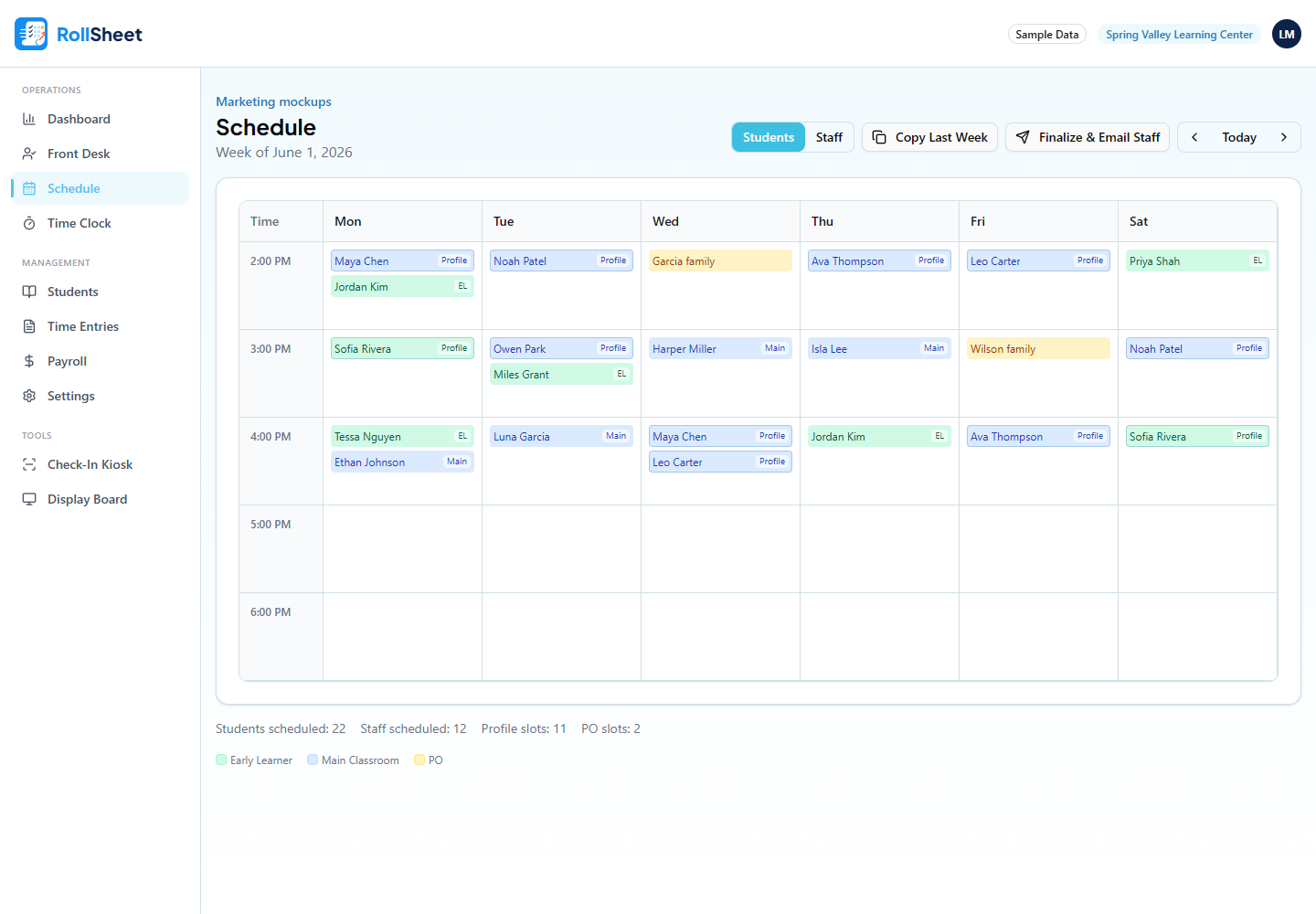
- Open Schedule (under Operations). Typical visits appear on every week with a small Profile badge and a thin outline. Hover one to see "From student profile typical schedule".
- Each visit lasts your center's Expected Session length, set under Settings → Center Info.
- Profile visits can't be removed on the Schedule page. To change or stop them, edit the student's typical schedule or untick the checkbox.
- The Typical Days column on the Students page shows each student's usual days at a glance.
Add a one-off visit or a PO slot
- On Schedule, make sure Students is selected and use the arrows or Today to get to the right week.
- Click the cell for the day and time.
- Under Slot Type, choose Student and pick one or more students, or choose PO (parent orientation) and type a Label such as "Smith family".
- Adjust Start Time and End Time if needed and click Add Slot.
- To move a slot, remove it with its trash icon and add it again at the new time. An Undo button appears for a few seconds after you remove one.
- Copy Last Week copies last week's saved student and PO slots into the week you're looking at. Profile visits don't need copying because they show every week on their own.
What this affects
- Profile visits are included in the "Students scheduled" count under the weekly schedule.
- Deactivating a student removes their profile visits. Slots you added by hand stay until you remove them.
Tips
- Use the typical schedule for a student's regular routine, and weekly slots for make-ups, trial visits and parent orientations.