Students
Deactivate or reactivate a student
Take a student who has stopped coming off your active list without losing their history, and bring them back later.
- Who can do this
- Admins
- Where
- Management → Students
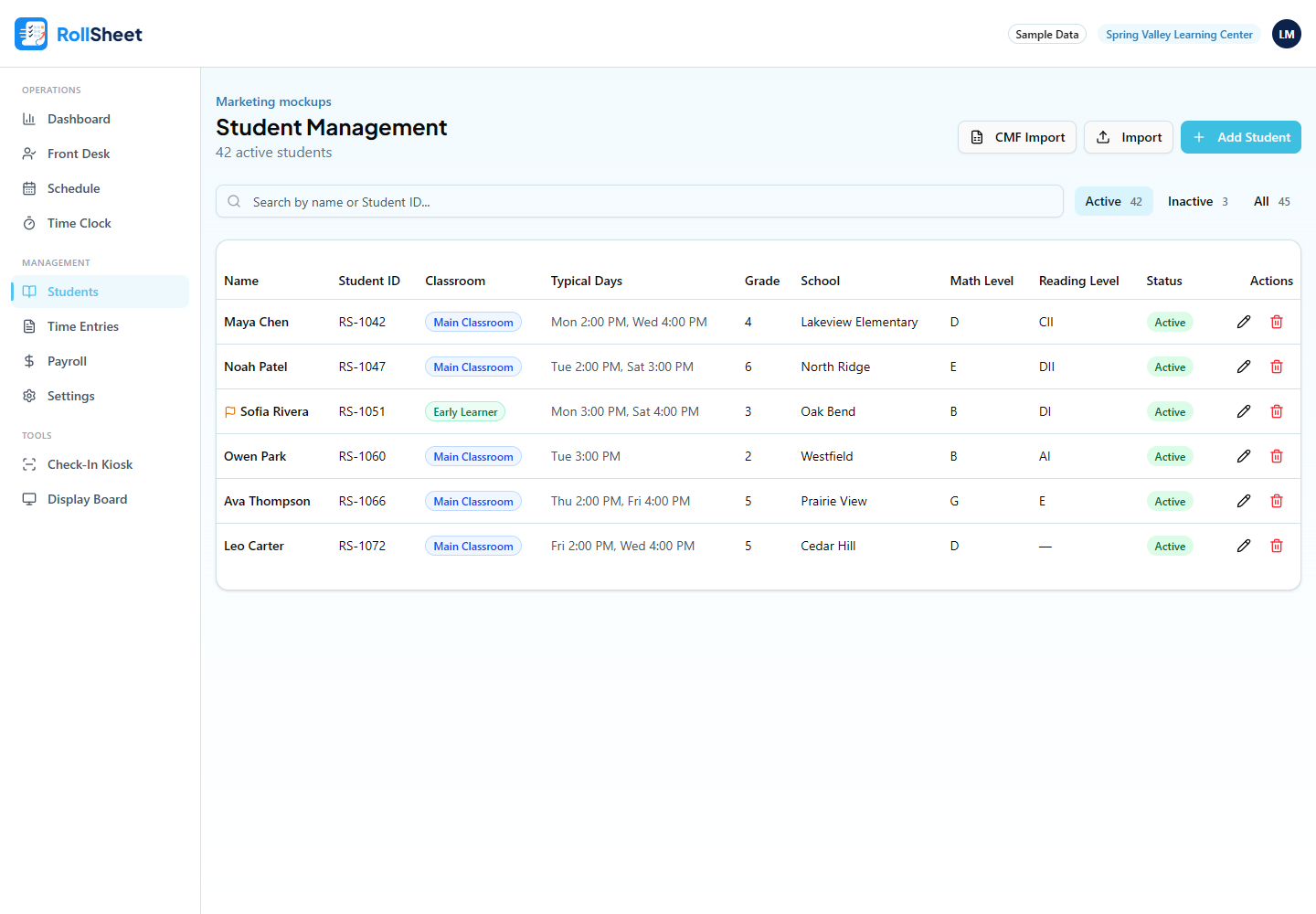
Deactivate a student
- In the sidebar, open Students (under Management).
- Find the student. Type part of their name or Student ID in the search box if the list is long.
- Click the red trash icon at the end of their row.
- Your browser asks you to confirm. Click OK.
Undo right away
After you deactivate someone, a message appears at the bottom of the screen with an Undo button. It stays for about 8 seconds. Clicking Undo makes the student active again.
Reactivate a student later
- Open Students and click Inactive next to the search box. (All shows active and inactive students together.)
- Find the student. Inactive students have a grey Inactive badge.
- Click the green circular arrow at the end of their row.
- Reactivating takes a seat on your plan again. If you're already at your limit you'll see "You've reached your plan limit" and the student stays inactive until you free a seat or change plans under Settings → Billing.
What this affects
- The student disappears from the Check-In Kiosk and from the Front Desk check-in list.
- They're left out of Report B and the dashboard counts.
- Their typical schedule visits come off the weekly schedule, and they no longer appear when you add students to a schedule slot.
- Slots already booked for them on the weekly schedule stay, and Copy Last Week copies those booked slots into the new week. Remove them on the Schedule page if the student won't be coming.
- If they're checked in right now, they stay on the Front Desk and Display Board until someone checks them out.
- Their sessions, notes, levels and parent details are kept. Deactivating never erases records.
- They stop counting toward your plan's user limit. Active students and active staff count together.
Tips
- Deactivating is how RollSheet removes a student. There's no separate delete.
- The Active, Inactive and All buttons show a count next to each label, so you can see how many students are in each group.