Parents & integrations
Connect a parent to the parent portal
Give a parent their own RollSheet sign-in so they can see their child's upcoming visits and, if you turn it on, book slots and follow progress.
- Who can do this
- Admins
- Where
- Management → Students · center name menu at the top of the screen
1. Put the parent's email on the student
- Open Students (under Management) and click the pencil on the child's row.
- Under Parent/Guardian, fill in Parent First Name and Email. Use the email the parent will sign in with, typed in all lowercase.
- Click Save Changes.
2. Invite the parent to your center
- Click your center's name at the top of the screen and choose Manage.
- Open Members and click Invite.
- Enter the same email address, leave the role as Member, and send the invitation.
- The parent gets an email invitation. They accept it and create their sign-in with that email address.
3. The parent signs in
- The parent signs in at roll-sheet.com and, if asked to choose a center, picks yours.
- The first time they open RollSheet, it matches their email to the parent record and links them automatically. If RollSheet asks, they click Confirm & Link Account.
- Parents only see the parent portal (Dashboard, Schedule and Progress), never staff pages.
- If the parent sees Account Not Found, or is asked for an invite code, the email on the student doesn't match the one they signed in with. Correct it on the student and have them sign in again.
What parents can see
- Dashboard: their children and the upcoming slots booked for them on your weekly schedule.
- Schedule: booking and cancelling visit slots. Turn it on under Settings → Parent Scheduling. Parents can book up to 4 weeks ahead and cancel until 24 hours before.
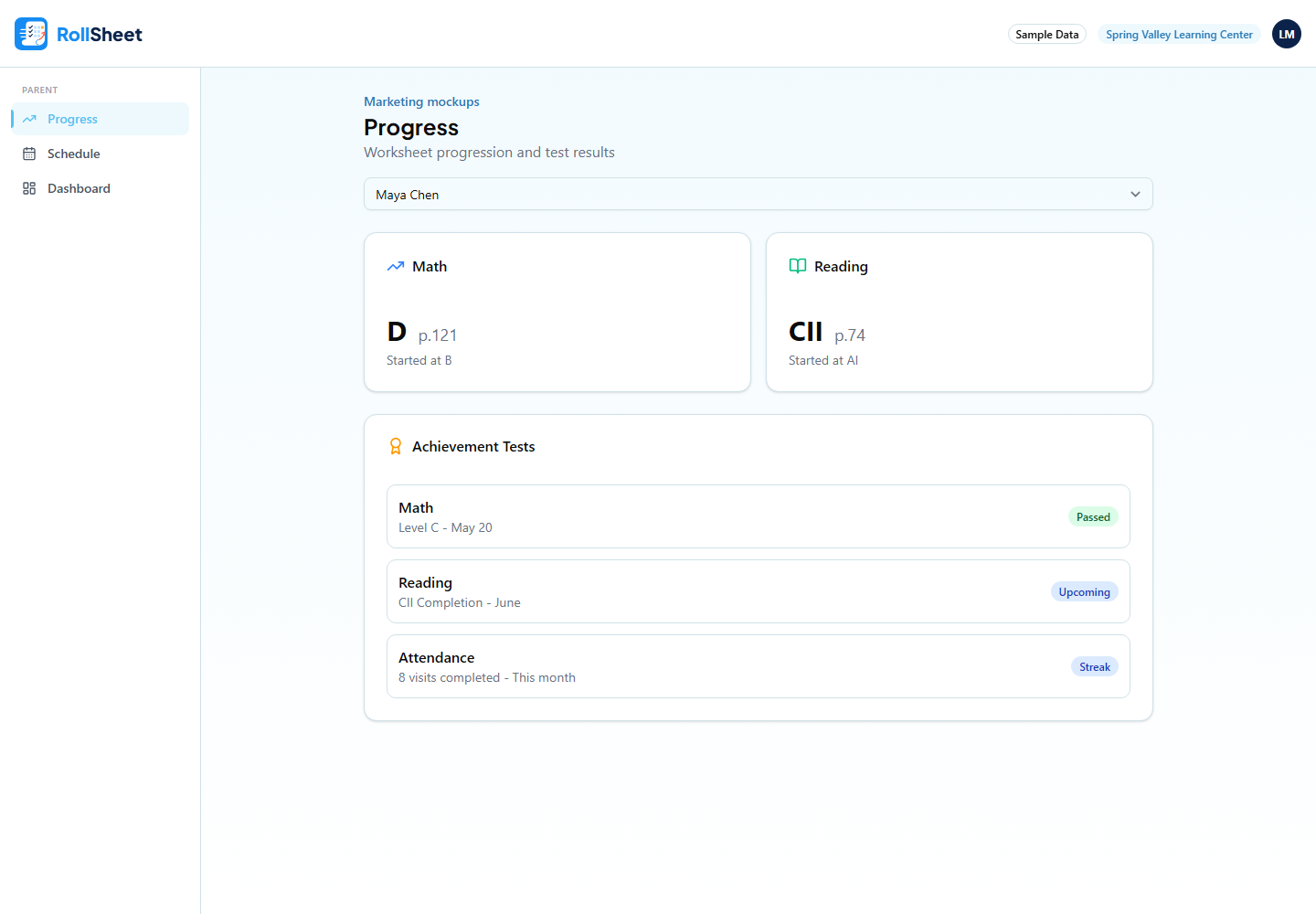
- Progress: current Math and Reading levels, worksheet history and achievement tests. Turn it on under Settings → Progress Tracking.
- Parent Scheduling, Progress Tracking and parent text notifications need the Standard plan or higher.
What this affects
- Linking a parent doesn't use a seat on your plan. Seats count active students and staff only.
- Check-in and check-out texts are separate from the portal. They go to the phone number on the parent record when Settings → Notifications is on.
Tips
- How many slots parents can book at each time is set from the Manage Slot Capacity link on the Parent Scheduling page.