Front desk & kiosk
Check students in and out at the front desk
Check students in with their subjects, pages and tutor, keep their worksheet progress current during the session, and check them out.
- Who can do this
- All staff
- Where
- Operations → Front Desk
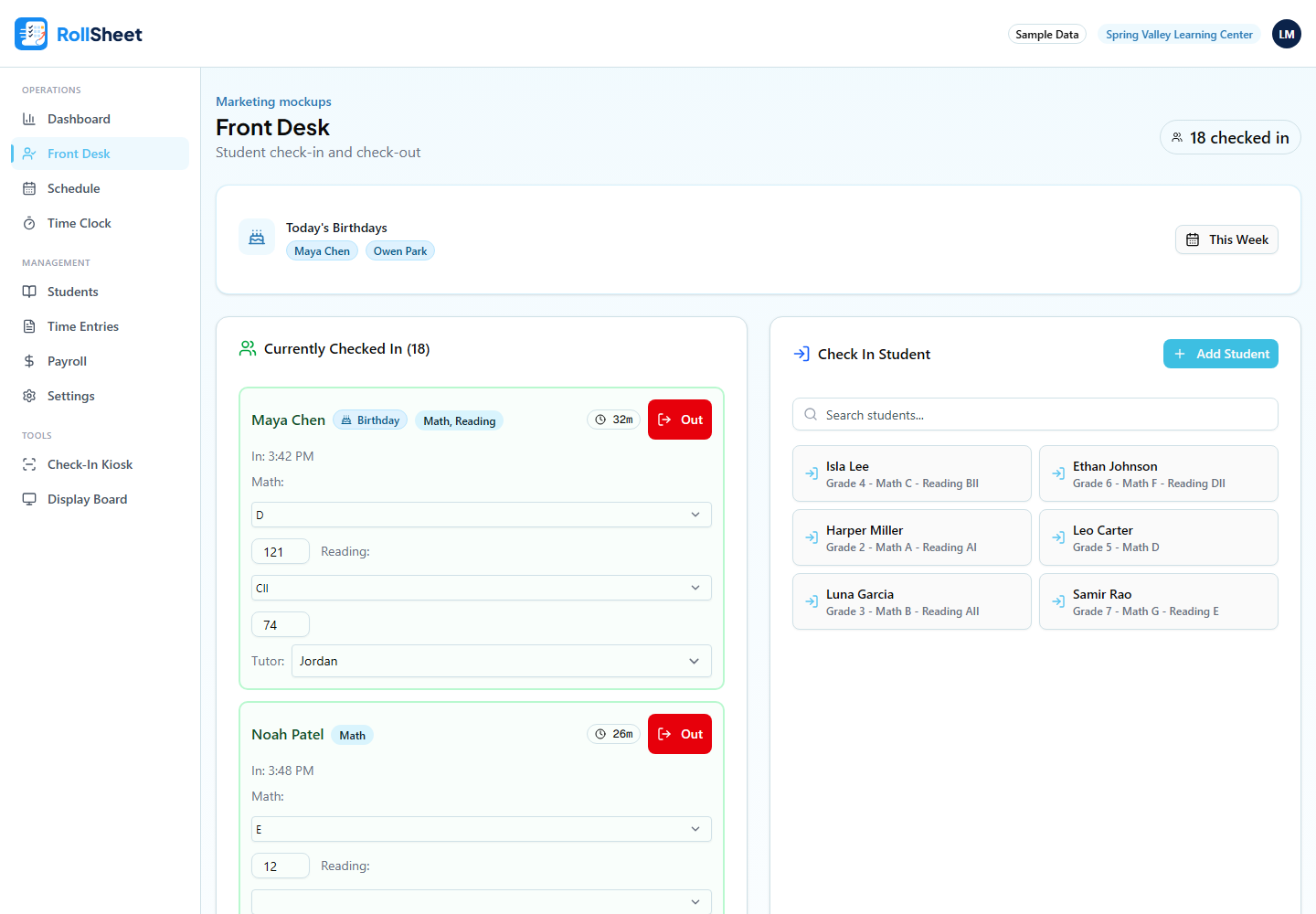
Check a student in
- Open Front Desk from the sidebar.
- In Check In Student, start typing the student's name and click their row.
- Under Subjects, choose Math, Reading or both. Their current level and page are filled in from their record, so change them only if they're wrong.
- Pick a tutor under Assign Tutor. The student's last tutor is already selected, and the hint underneath shows who it was.
- Click Check In.
- If an instructor has flagged the student, the Instructor Note appears at the top of the check-in window.
- If you skip subjects, RollSheet uses the subjects the student has levels for.
During the session
Each checked-in student has a card under Currently Checked In with a timer that changes colour as the session goes on.
- Change the Math or Reading level and the page boxes as they work, then click Save.
- Change the tutor from the Tutor list. It saves right away.
- Click Add notes... to write a session note, then save it with the check mark.
Check a student out
- Click the red Out button on the student's card.
- There's no confirmation, and any level or page changes you haven't saved yet are saved with the check-out.
Birthdays
Today's Birthdays at the top of the page lists students whose birthday is today. Click This Week to see everyone with a birthday from Monday to Sunday. Birthdays come from each student's Date of Birth.
What this affects
- Checking in and out sends the parent a text if parent notifications are turned on under Settings → Notifications and that parent hasn't opted out.
- The levels and pages you save become the student's current level and page, so the next check-in starts from there.
- Check-ins show on the Display Board and the dashboard, and the session is kept in the student's history.
Tips
- Students can also check themselves in on a tablet. See "Set up the check-in kiosk and display board".
- Admins and instructors can add a new student here with Add Student in the Check In Student card.