Front desk & kiosk
Set up the check-in kiosk and display board
Put a tablet at the door so students tap their own name to check in and out, and show who's in the room on a classroom screen.
- Who can do this
- Any staff member can open them. The device must be signed in with a staff account.
- Where
- Tools → Check-In Kiosk · Tools → Display Board
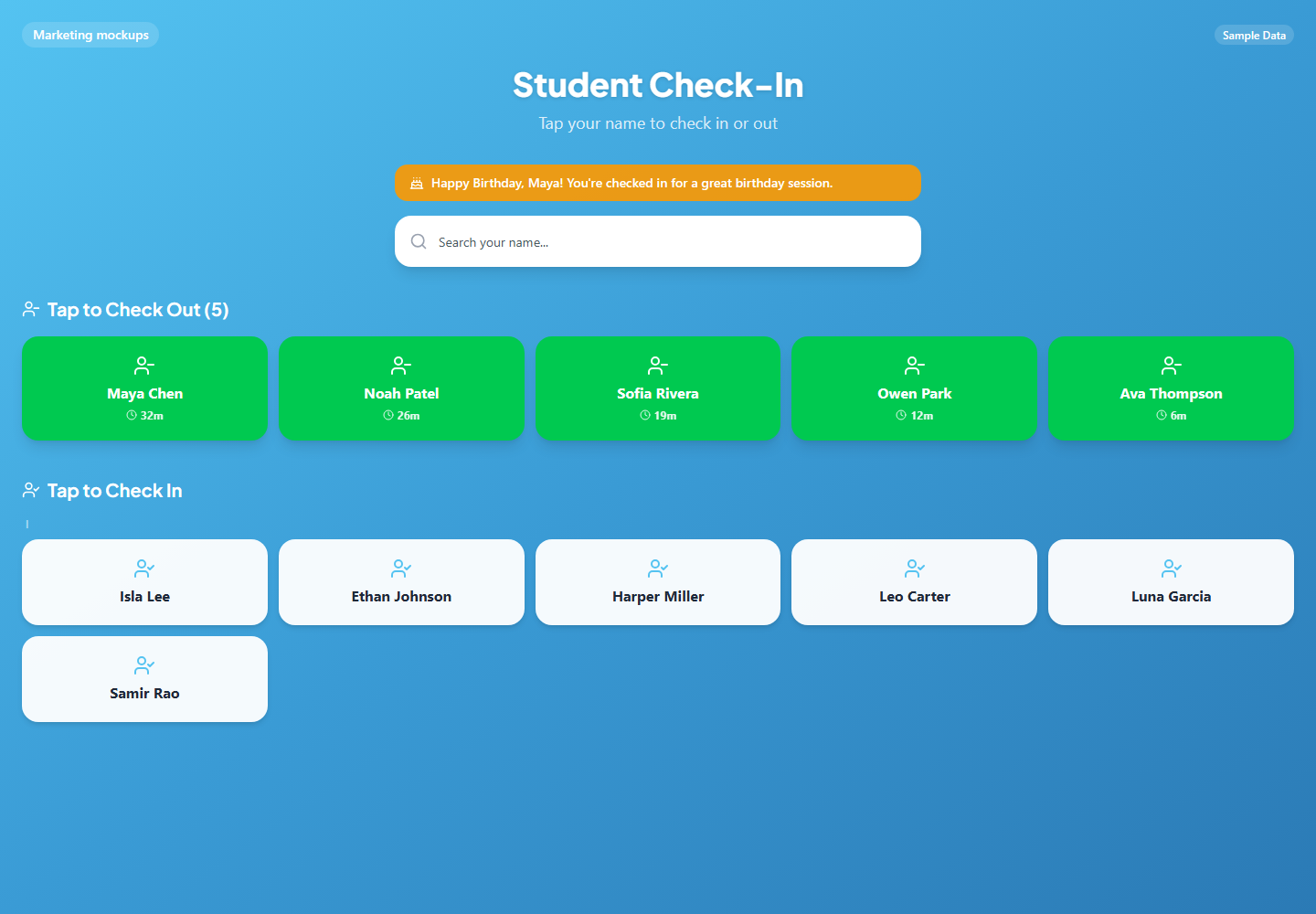
Set up the kiosk tablet
- On the tablet, sign in to RollSheet with a staff account and select your center.
- In the sidebar, open Check-In Kiosk (under Tools). The sidebar and assistant are hidden on this page so the names fill the screen.
- Optional: when the browser offers Install App, install it, or on iPad tap Share and then Add to Home Screen. The installed app opens on the RollSheet home page, so open Check-In Kiosk again after launching it.
- Leave the tablet on this page at the front of the center.
What students do
- To check in, a student finds their name under Tap to Check In (names are grouped by first letter, or they can type in Search your name...) and taps it once.
- To check out, they tap their name under Tap to Check Out. That tile shows how long they've been in.
- A short welcome or goodbye message confirms the tap, with a birthday version on their birthday.
- There's no PIN and no confirmation step. Subjects come from the student's levels, and staff can assign a tutor from the Front Desk afterwards.
Set up the display board
- On the classroom screen, sign in with a staff account and open Display Board (under Tools).
- Leave it open. It refreshes every 10 seconds and keeps the screen awake on browsers that allow it.
- Each card shows the student's name, time in, Math and Reading levels, tutor and a progress bar.
- The board is read-only. Nothing on it can be changed by tapping.
Timer colours
Kiosk tiles, display cards and Front Desk timers change colour from green toward red as a session goes on. The length is set under Settings → Center Info → Expected Session (minutes). Students doing both Math and Reading get twice that time.
What this affects
- Kiosk check-ins and check-outs are the same as Front Desk ones: they appear on the Front Desk right away and send parent notifications if those are turned on.
- Only active students appear on the kiosk.
- If the internet drops, the kiosk keeps taking taps and shows "Offline mode" with the number waiting. They're sent once the connection is back.
Tips
- Use a staff account with the Assistant role on shared devices. It can run the kiosk but can't open admin pages.
- The kiosk lists every active student's full name, so place it where that's fine for your center.