Staff & payroll
Clock in and out
Record your own shift on the Time Clock, clock someone else in or out from Admin Clock, and control where staff can clock in from.
- Who can do this
- All staff clock themselves in. Admins and instructors use Admin Clock. Admins set the time clock rules.
- Where
- Operations → Time Clock · Operations → Admin Clock · Management → Settings → Time Clock
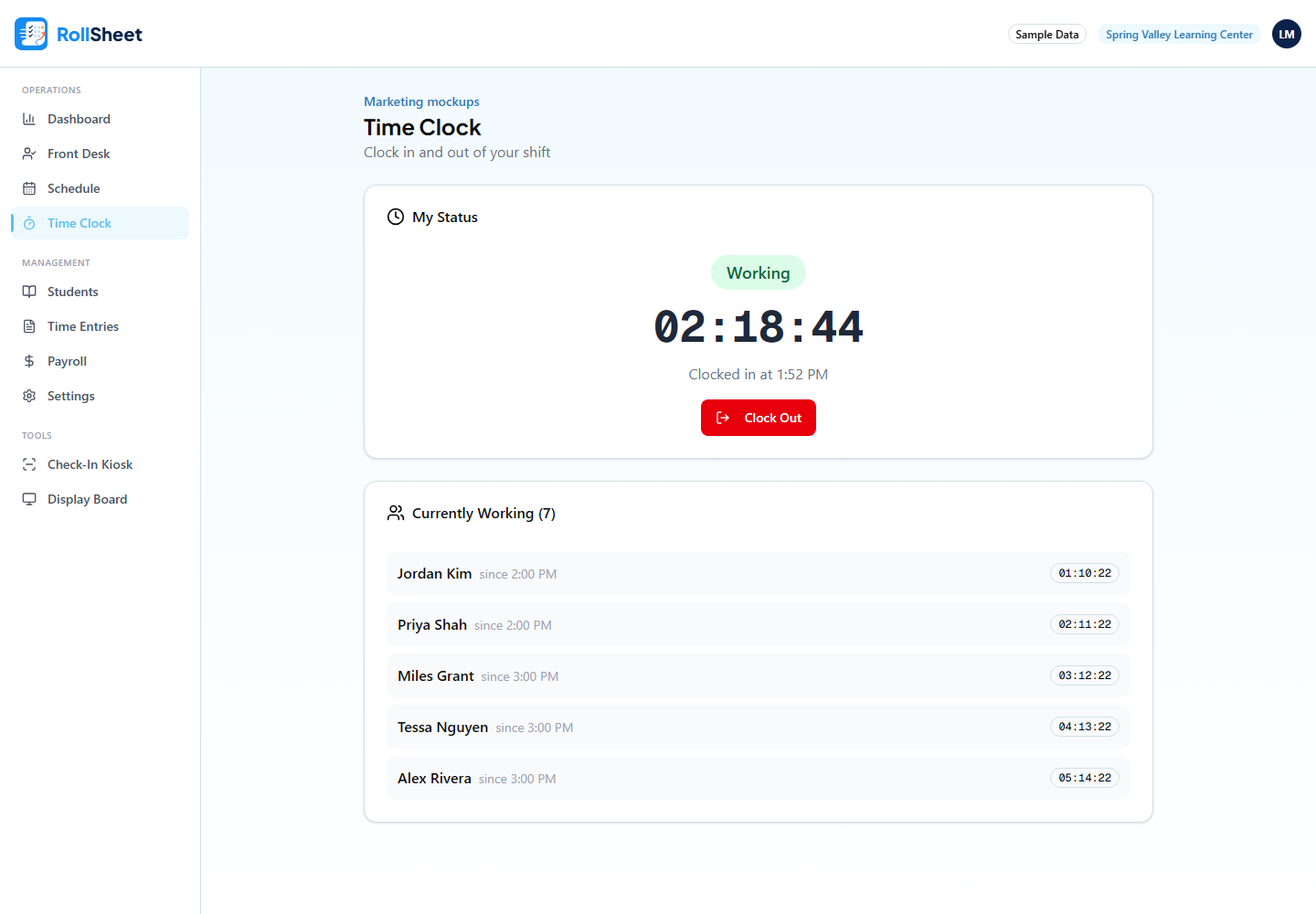
Clock yourself in and out
- Open Time Clock from the sidebar.
- Click Clock In. Your status changes to Working and a timer starts.
- At the end of your shift, click the red Clock Out.
- My Hours This Week shows hours worked against hours scheduled for the current pay period, which runs Thursday to Wednesday.
- Admins and instructors also see Currently Working, the list of everyone on the clock.
Clock someone else in or out
For admins and instructors, when a staff member can't do it themselves.
- Open Admin Clock (under Operations).
- Pick the employee from Select an employee....
- Click Clock In or Clock Out.
- Entries started or ended from Admin Clock are approved automatically in your name.
Choose where staff can clock in from
- Open Settings (under Management) and choose Time Clock.
- Under Policy, pick Allow from anywhere, Deny self check-in or Allow only from center IP.
- For center IP, connect to the center's Wi-Fi, click Use Current IP, and check the address that appears.
- Click Save Settings.
- These rules apply to Assistants only. Admins and instructors can always clock themselves in and out.
- To exempt one person, open Employees, edit them and tick Time clock override. They can then clock themselves in and out from anywhere.
- With Allow only from center IP, staff who have left the center network can't clock out from their phone. Clock them out from Admin Clock instead.
What this affects
- Clocked hours feed Time Entries and payroll. New entries from the Time Clock start unapproved.
- If someone forgets to clock out, RollSheet closes the entry overnight with zero hours. An admin fixes the Clock Out time in Time Entries before approving it.
Tips
- There's no separate break button. If your center tracks breaks, clock out and back in.